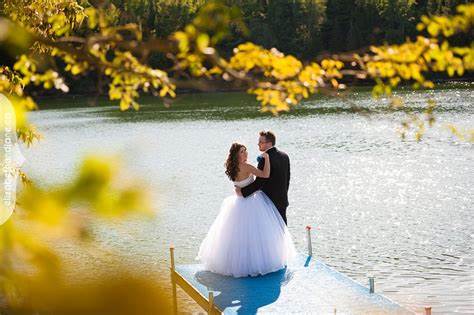

How to blend two Layers to make one single photograph using photoshop
In this tutorial you will learn how to blend two Layers to make one single photograph using photoshop.
Step 1: Open that photograph which you want as the Background Blending option.

Step 2: Open another photograph in Photoshop this image will be used as the Blending Layer.

Step 3: Now Move one photograph over the other, this can be done by dragging the photograph which you have chosen as the Blending Layer above the background. This can be done only if move tool has been selected by default, if not then select the Move Tool by shortcut key V or by selecting its option as shown below.


Step 4: Go to the Layer Palette and add a Vector Mask to the Blending Layer as shown below.

Step 5: Now we will put the Blending effect using the Gradient tool.

Select the type of Gradient you want, i have chosen the Radial Gradient

Now Using the Gradient Tool Draw the Gradient Arrow at any angle you want, i have done it from lower left corner to upper right corner.

Here is the final Image. As you can see that the blending layer is only visible on the right, this is because of the gradient tool. If you look at the Layer Palette in the above figure you will notice that the lower left corner is black while the rest is white. The region in white in the Mask Layer is Visible while the region which is black is not visible and the region which is neither white nor black is i.e. a little grey is partially visible.
Note: You can now experiment with the Different Angles of the Gradient tool to get different effects.


December 1st, 2008 at 7:40 am
Hi,
Sir very good process.i like it
December 1st, 2008 at 6:56 pm
thanks, useful
December 18th, 2008 at 10:16 am
[...] Photo Effect Resources: How to make a picture look like frosted glass using photoshop How to blend two Layers to make one single photograph using photoshop How to create a Crystal Ball effect in photograph using Photoshop How to make some parts colored [...]
June 30th, 2009 at 2:58 am
This is really excellent! Thank you for sharing!
June 17th, 2010 at 4:38 pm
I very much loved this blog. Please continue this great hobby. Be Back Soon!!